Configuring Licensing
Initial License Keys
After CenterScape connects to the database for the first time and restarts, it then creates and populates all the needed tables in the database and allows for the default login of username “admin” and password “admin”. Once logged in a CenterScape with no valid licenses will present the following screen. Click “Add License Key” to add a valid license that should be provided with the software.
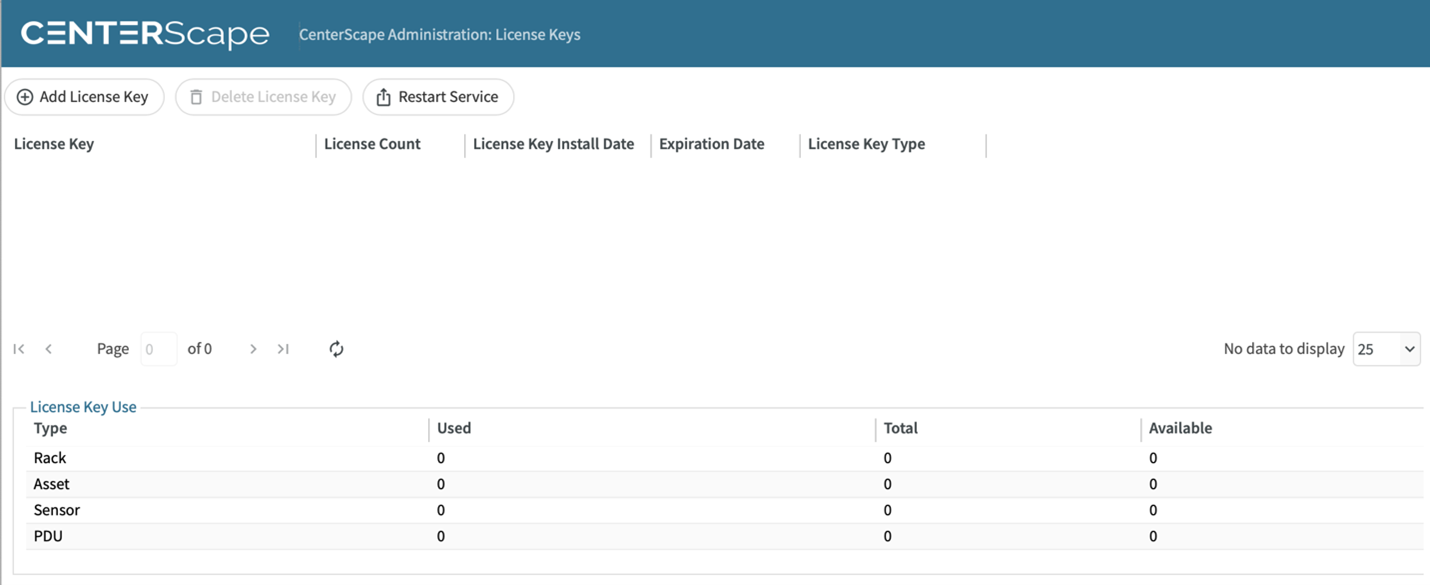
When adding licenses keys the type of license, the number of nodes licensed and the term of the expiration date of the license will be displayed. After adding license keys click the restart button and the server will come up with functional licenses and the normal user interface will be presented on login. If a license is omitted before clicking the restart button, license can be added later in the normal user interface.
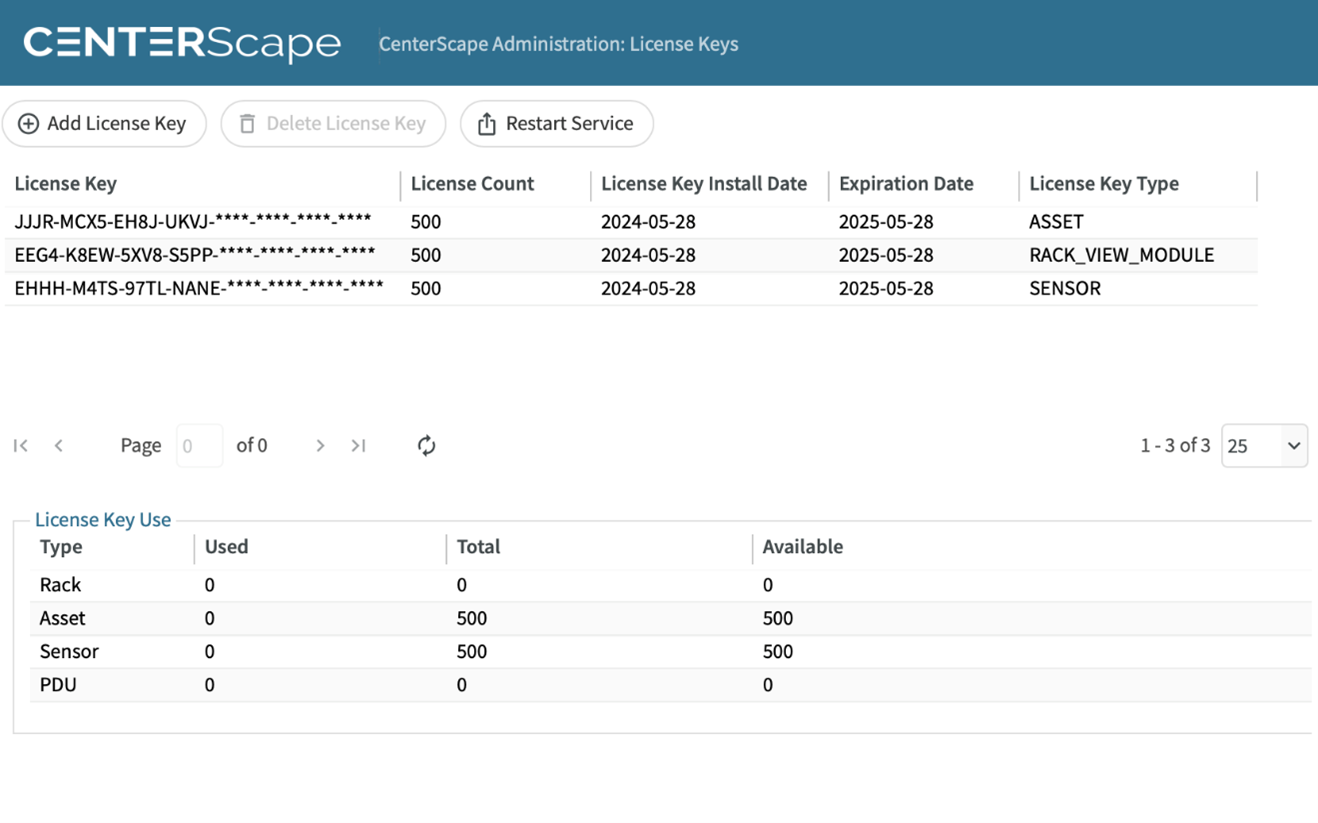
The restart of the server may take a few minutes to accomplish. If the page does not reload refresh it on the browser.